
SwiftData arrived in iOS 17 as Apple's Swift-native persistence layer — @Model macros, relationship graphs, and tight SwiftUI integration. Debugging it is less mature than Core Data. Xcode does not ship a SwiftData browser. LLDB can po objects, but traversing relationships and verifying migrations at runtime is tedious. DebugSwift's SwiftData browser lists registered containers, shows models, and lets you edit values without exporting the store.
What you can inspect
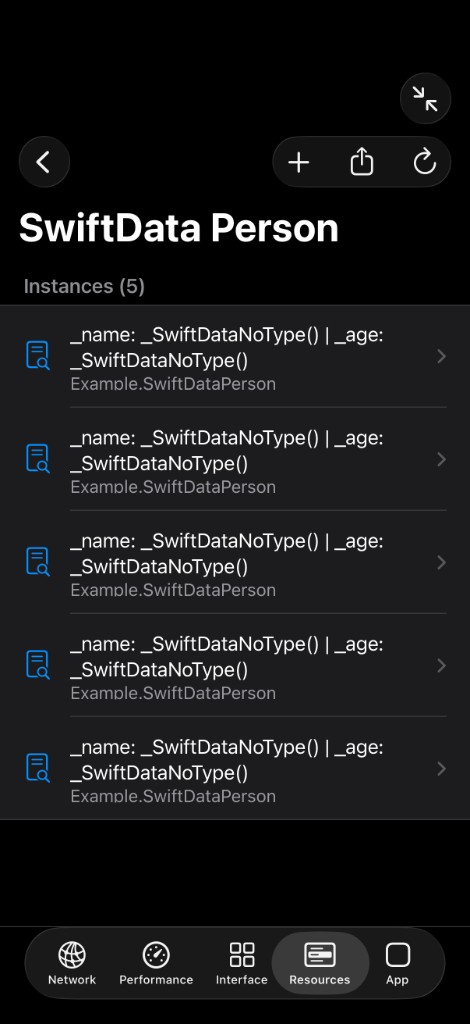
On iOS 17 and later, DebugSwift discovers SwiftData containers registered in your app. Browse each model type, inspect properties and relationships, and open individual records.
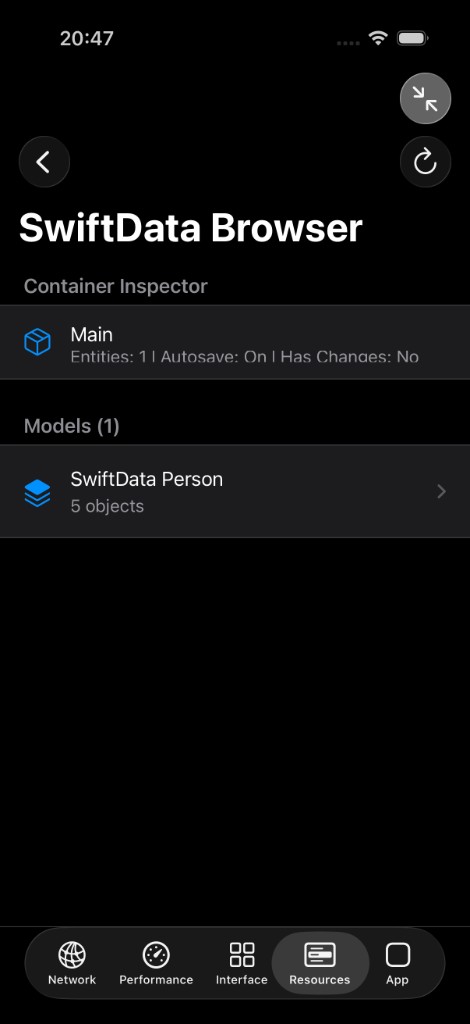

- List all @Model types in a container
- View property values and relationship links between records
- Edit field values in place to test UI reactions
- Export selected records as JSON for diffing or bug reports
When this saves hours
- Migration testing — verify default values and required fields after a schema change
- Relationship debugging — confirm cascade deletes and inverse relationships behave correctly
- Seed data inspection — check whether your preview or test seeder wrote expected rows
- Sync conflicts — compare local records against what your API claims should exist
SwiftData vs the database browser
DebugSwift also ships a SQLite and Realm browser for file-based stores. SwiftData often persists to SQLite under the hood, but the raw SQL view lacks model semantics — table names are opaque, relationships are foreign keys you must join manually. The SwiftData browser operates at the model layer, which matches how you think about your code. Use the SQLite browser when you need to inspect non-SwiftData databases or third-party stores.
Requirements and limits
The browser requires iOS 17+ and a DEBUG build with DebugSwift setup. It reflects the live in-memory and on-disk state of the running process — edits apply immediately, so treat changes like any runtime mutation during development. Back up important test data before bulk edits. CloudKit sync is not mirrored in real time; you see the local container state on device or simulator.